Key points
- Write down your regular classes and pass types before you export anything.
- Clear every filter and date range before each export, then count customers against the old system.
- After the import, check three students by hand: their balance, their expiry date and their booked place.
- Stop new bookings in the old system, but keep that account open for a month after the switch.
- Before you cancel, export everything and check whether the old system deletes your data.
In this guide
Switching booking system is less risky than it feels, if you do the work in the right order. What you need to protect is the students who have paid for classes they have not taken yet, and the places they have already booked. Those are what a switch can lose, so this guide starts with them. It works for any system you are leaving, including a spreadsheet or a WhatsApp group.
What to take with you
Three kinds of information matter, and they usually live in different places.
- Your students: names, email addresses and phone numbers. The email address matters most, because you will need it to match each student to their record in the new system.
- What they have paid for and what is left: class passes and blocks, with the classes remaining and the date each one runs out.
- What they have booked: their places in the next few weeks, each in the right class.
Your timetable is different. Rebuild it in the new system rather than exporting it, because bookings can only be matched to classes that already exist there. Keep a copy of the old timetable, and of your payment records, whatever happens to the data.
Write down what you sell first
Before you export anything, write down what the old system is selling for you. For each regular class: the name your students know it by, the day, the start time, the length, the place, the price and the number of places. For each pass or block: its name, how many classes it holds, what it costs and how long it lasts. If you cannot write a rule down, that is worth knowing before you move. It is the same list you need to set up the new system, so you only write it once.
Check what the new system can take
Read the new system’s import instructions, not its sales page. The question that matters most is whether class pass balances can be imported, or whether each one has to be typed in. Ask whether the new system carries over the classes left on a pass. A balance that is not carried over can go missing without an error message, so you only notice if you look.
Ask how the new system matches a returning student, and what happens when the email address differs from the one in the old system. A different address can leave a second, empty record while the balance stays with the first.
Test with a few real students before you commit. Choose three: one with a pass and a booking, one with no pass, and one whose email address is spelt differently in two places. Import them, then check the balance, the expiry date and the booked place by hand.
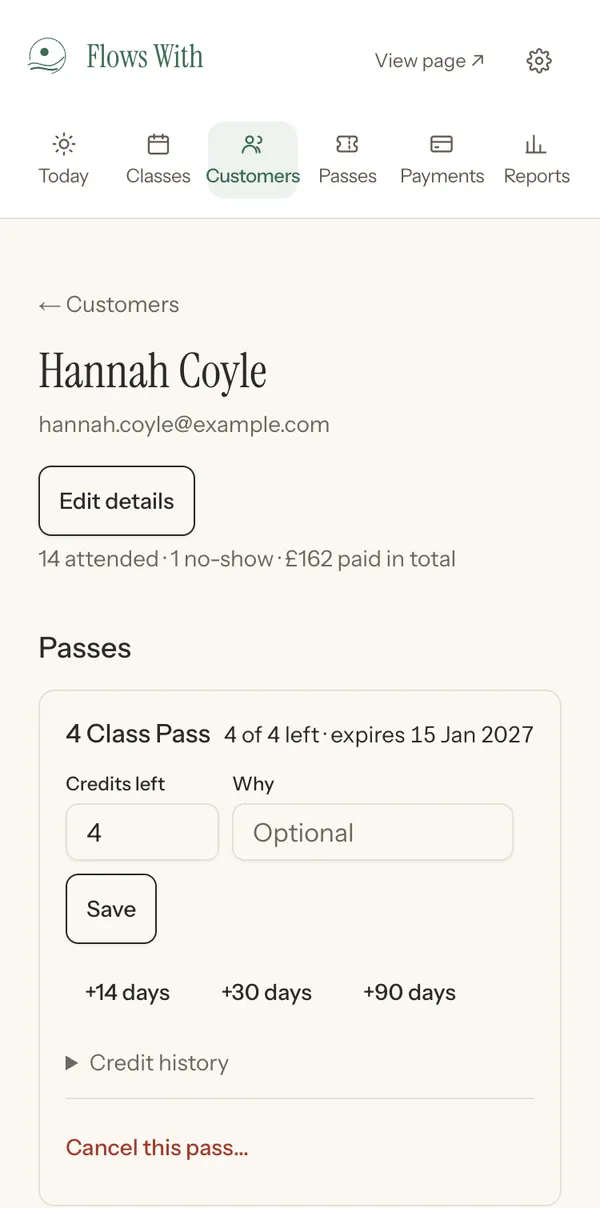
The question that matters most is whether class pass balances can be imported, or whether each one has to be typed in.
Export everything, with the filters cleared
Export customers, bookings and passes from the old system, then check how far each file reaches. Check whether each export follows the date range or filters on the screen it was run from. If a filter is left in place, people can drop out of the file without a word. Bookwhen’s own help says its attendance and booking exports cover only the start and end dates set in the search filters, and that to download all of your customers you should leave the customer filters blank. See Bookwhen’s export instructions. Check each export before you trust the file.
Then count. Compare the number of customers in the file with the number the old system shows. If they differ, find out why before you go on.
Set up your timetable first
Create your weekly classes in the new system before you import anything. Use the same names, days and start times as the old one, so each booking lands in the right class. Then check how the new system handles a clock change. A 7pm class should still show 7pm in January as well as July, and a booking an hour out is easy to miss until someone arrives early.
The order to do it in
- Stop taking new bookings in the old system, but do not cancel the account yet. Anything booked after your last export will not come across.
- Export the final files, with the filters cleared.
- Import them, and read the import report before you do anything else. Check three people by hand: their balance, their expiry date and their booked place.
- Replace the old booking link with the new one, and tell your students. Our guide to what to say, with templates, is what to tell your students when you change system.
- Keep the old account open for a month, and run a full cycle in the new one: a booking, a cancellation, a pass sale and, if you take it, a cash payment.
When to cancel the old system
Cancel when you have run a full cycle in the new system without going back to the old one, and when you hold a complete archive of the old data. Before you cancel, check two things: whether the old system deletes your data when the account closes, and whether you can still download exports afterwards. Export everything you might need, and store it somewhere you can find again. Ask your accountant how long to keep payment records.
Where Flows With fits
Flows With is booking software for independent yoga and pilates teachers. Moving to us is free. You send us your exports, we show you every customer, pass and booking that will move before anything moves, and nothing is emailed to your students while it happens. You still add your own classes. How the move works is on the moving page, and for teachers coming from Bookwhen, see moving from Bookwhen.
Prices and features of other companies were checked on their own websites on 24 November 2026. They change, so check before you decide.